myAir status and invitation
The myAir logo in every patient chart indicates the patient's myAir status.
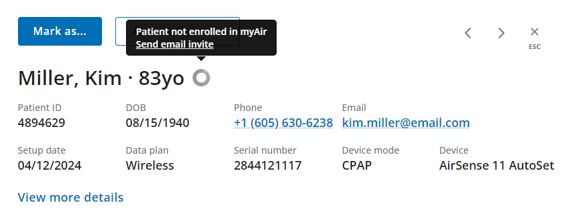
Through ComplianceCoach, you can send invites to patients who haven't yet created myAir accounts.
To invite a patient to myAir:
Hover over the grayed-out myAir icon.
Click Send email invite.
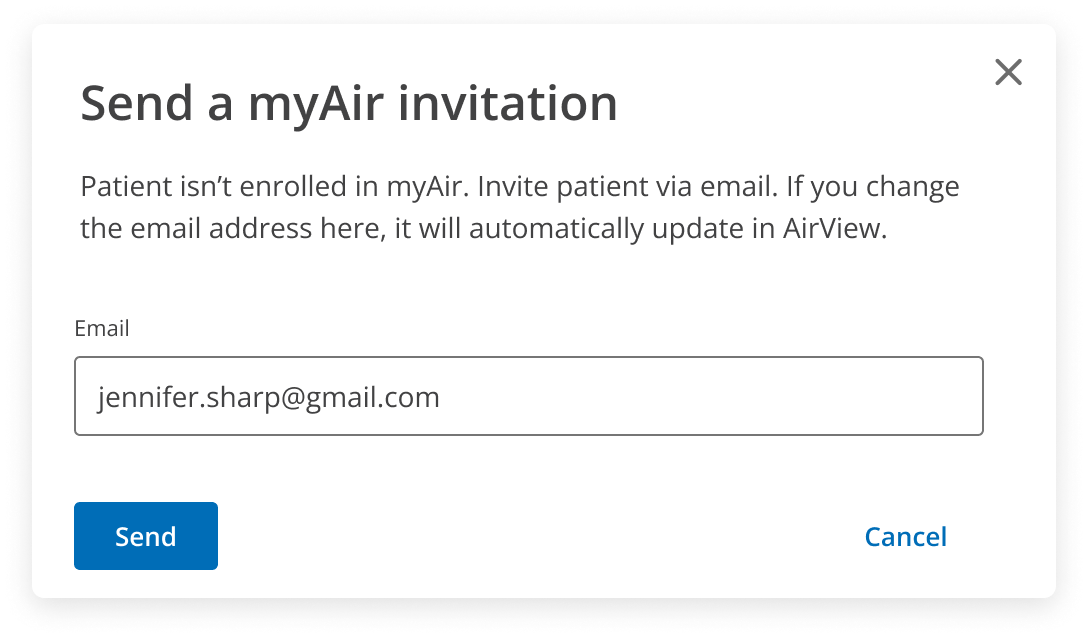
Add or update the patient's email.
Click Send.
Note
When you update a patient's email in ComplianceCoach, AirView updates as well.
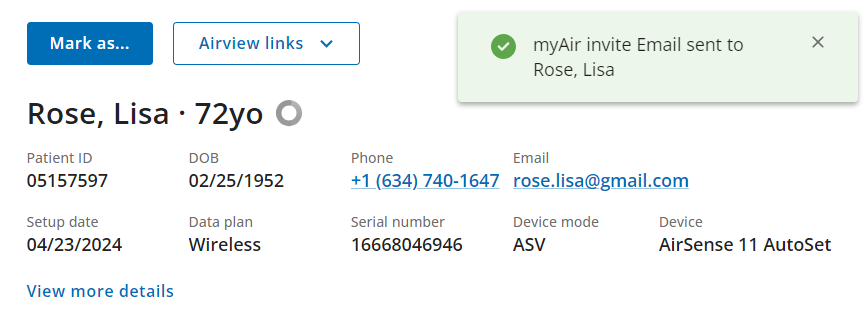
After you send the myAir invitation, ComplianceCoach confirms the email and updates the myAir status to Invited.
Note
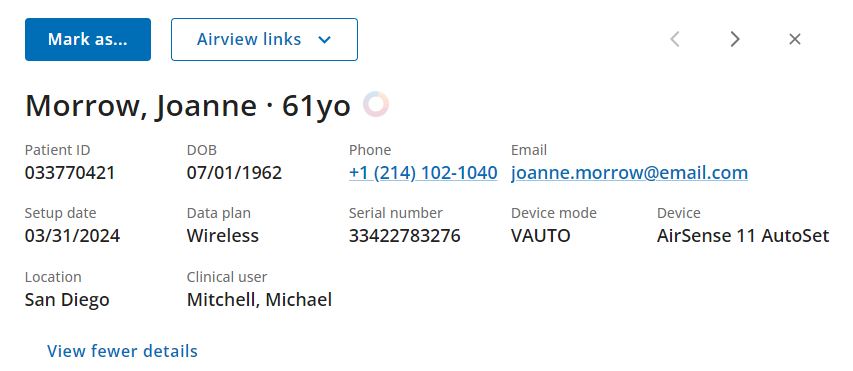
Click View more details to view location and clinician assigned to the patient in AirView.
Your patient's myAir status displays one of four states:
Registered
Not registered
Invited, not registered
Unknown
You can determine your patient's myAir status by hovering over the circular myAir icon.