Remove a patient from your patient list
You can mark a patient as Do not monitor to remove the patient from the list; however, AirView still monitors the patient.
From the Do not monitor dialog, select an option.
Click Save to remove the patient from the list.
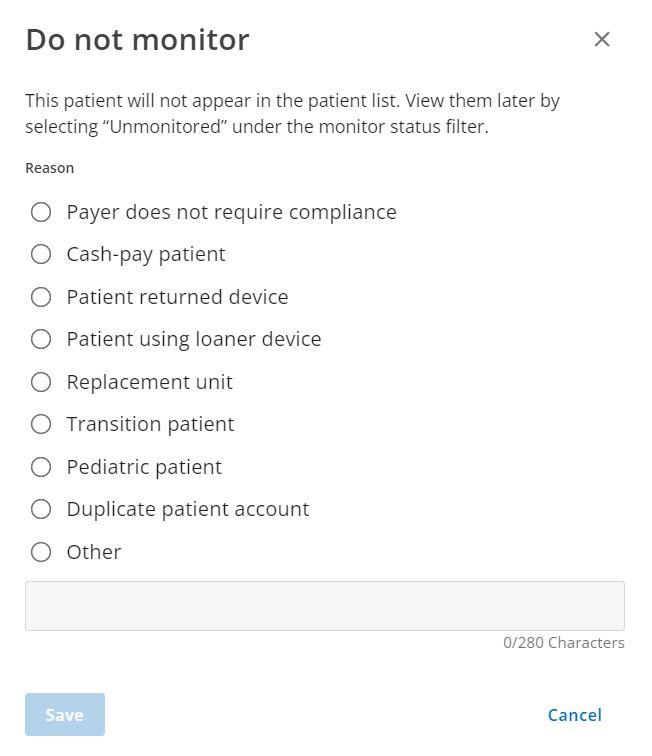
To review patients who are not monitored, select Monitor status > Unmonitored.
After you remove the patient, ComplianceCoach displays the next listed patient.
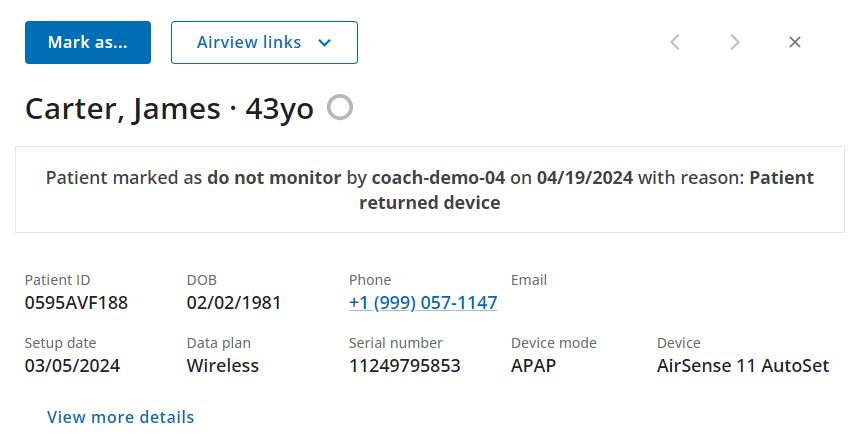
When a patient is marked as Do not monitor, all users in your organization can view the following details:
Clinical user who marked the patient as do not monitor
Date the patient was marked as do not monitor
Reason for selecting do not monitor
 |
Click the X icon ( ) to collapse the patient information.
Note: ComplianceCoach imports the Patient ID from AirView.